How to Give Permission to Re-Share Google Contact Labels
With ContactsFlow™ (formerly Shared Contacts for Gmail™), you can easily share contact labels with your team members, whilst permitting them to re-share them with others, when needed, and we are going to show you exactly how in the steps below!
Time needed: 1 minute
Follow the steps below to give your collaborators access permission:
- Sign in to your Shared contacts for your Gmail account
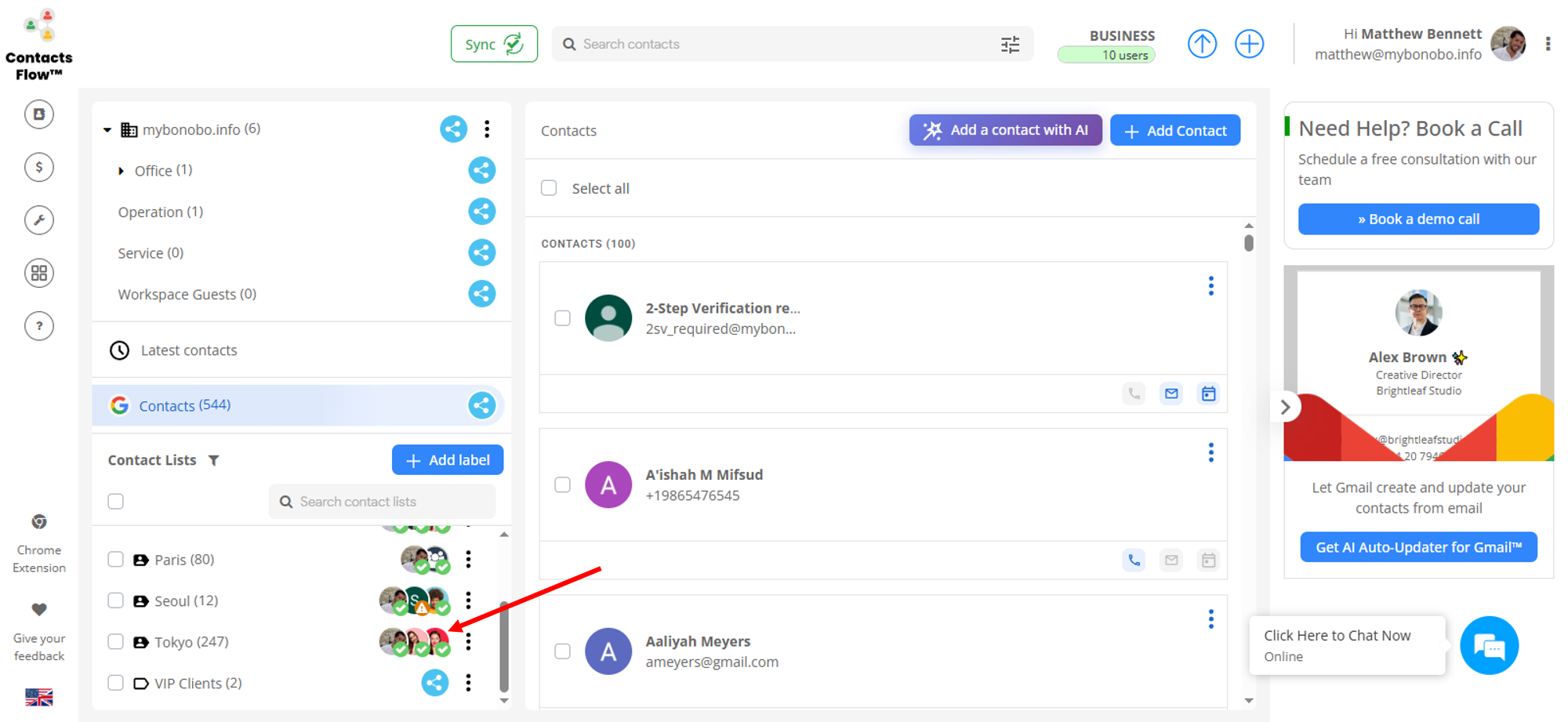
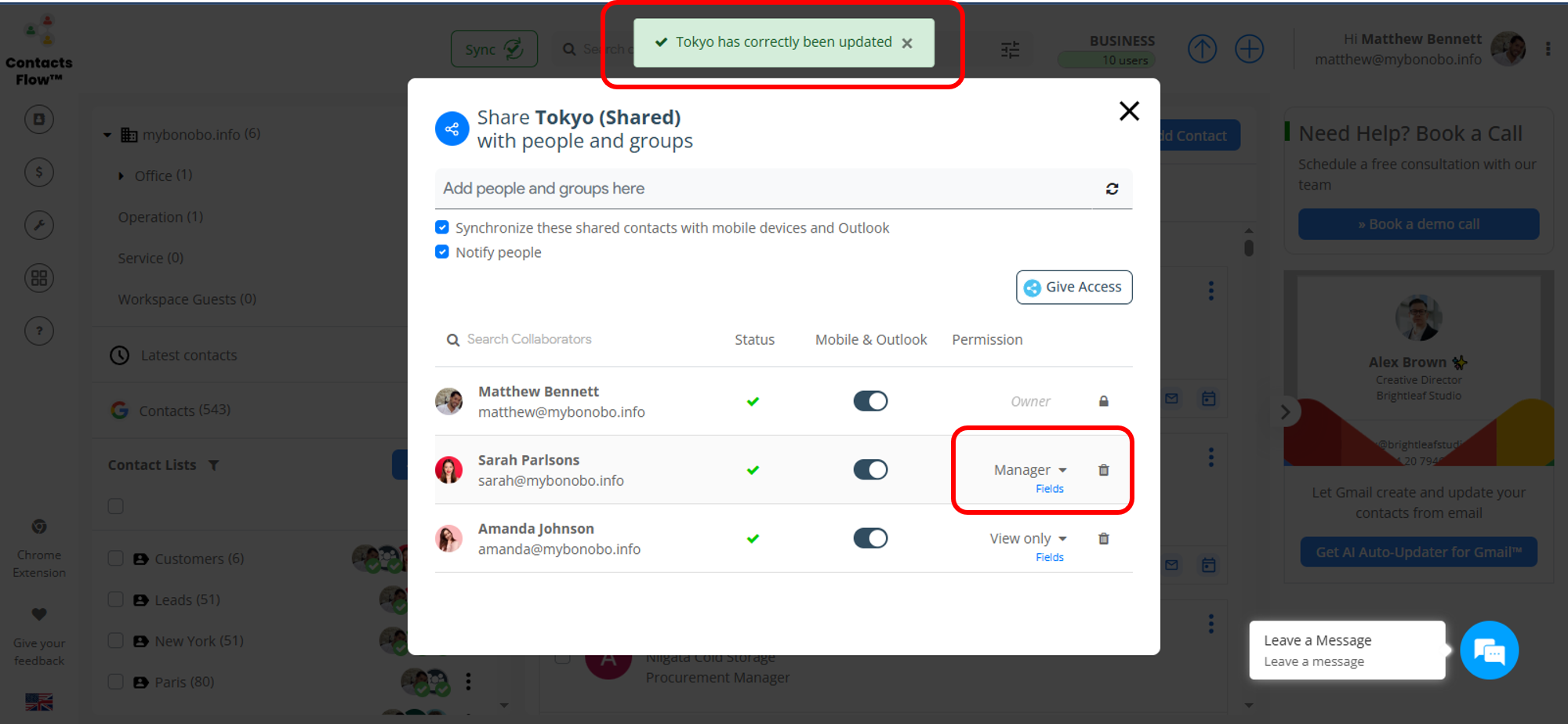
- Click the avatars on the label that includes the collaborator you want to grant re-share permission to.
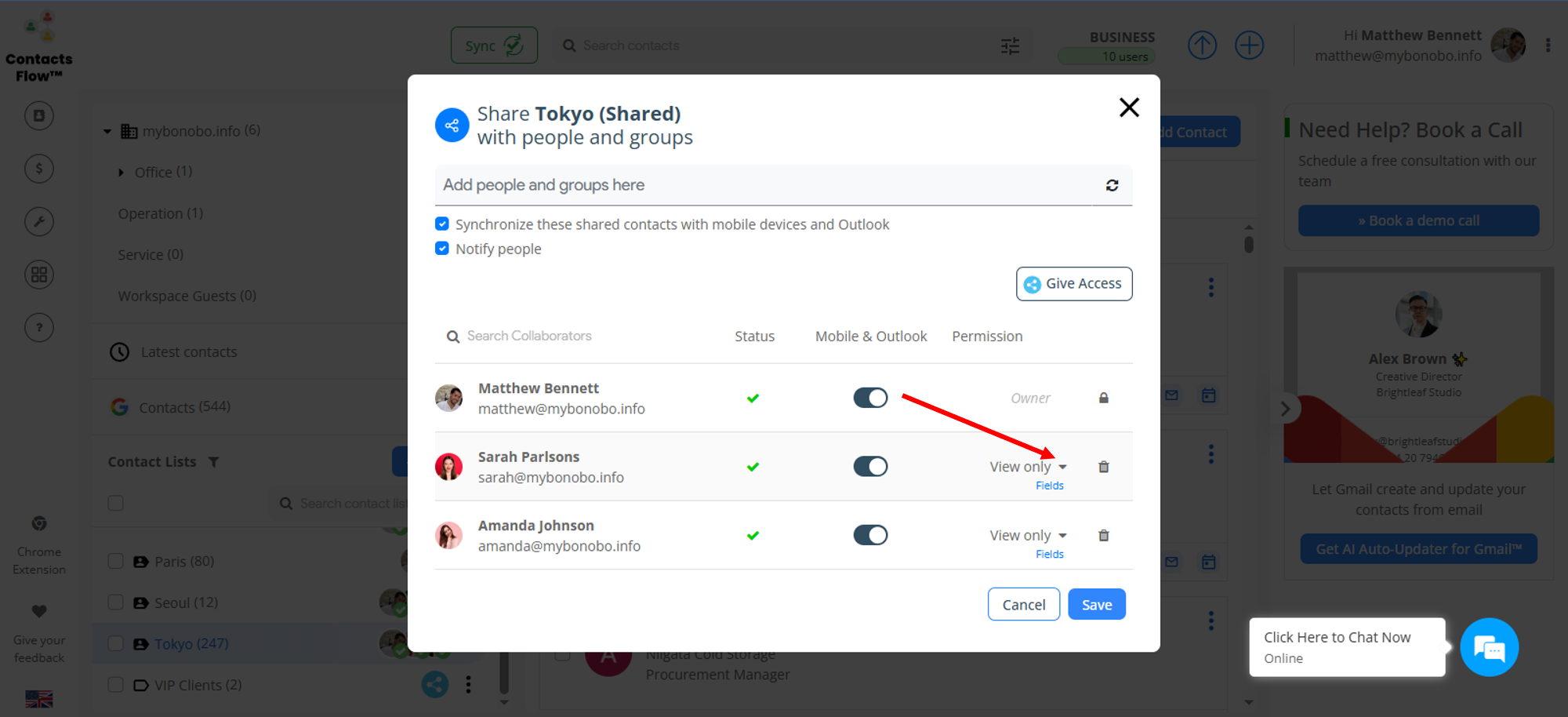
- Click the drop-down arrow next to the current permission.
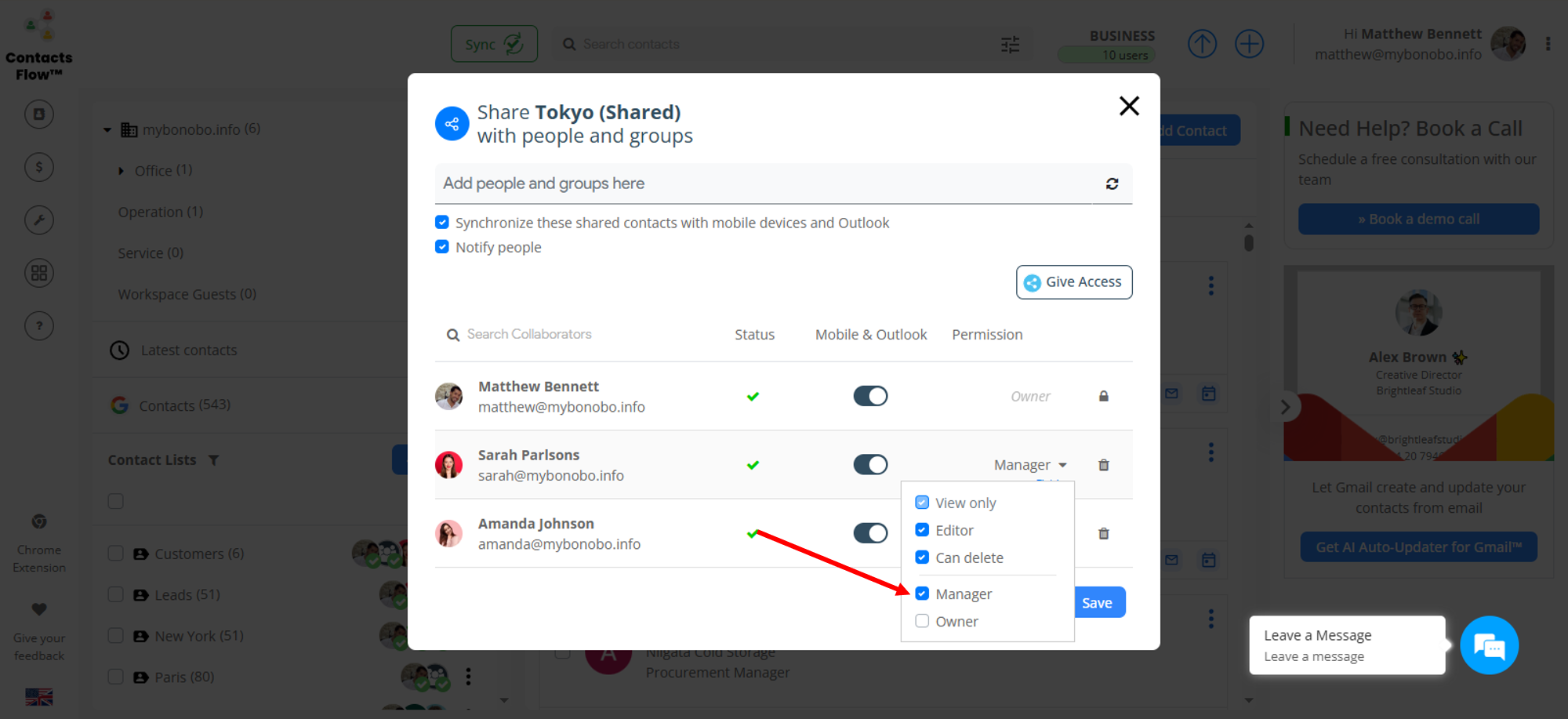
- Select ‘Manager‘.
Manager is the permission that allows the collaborator to re-share the contact list. Learn more about permissions here.
- Click ‘Save’.
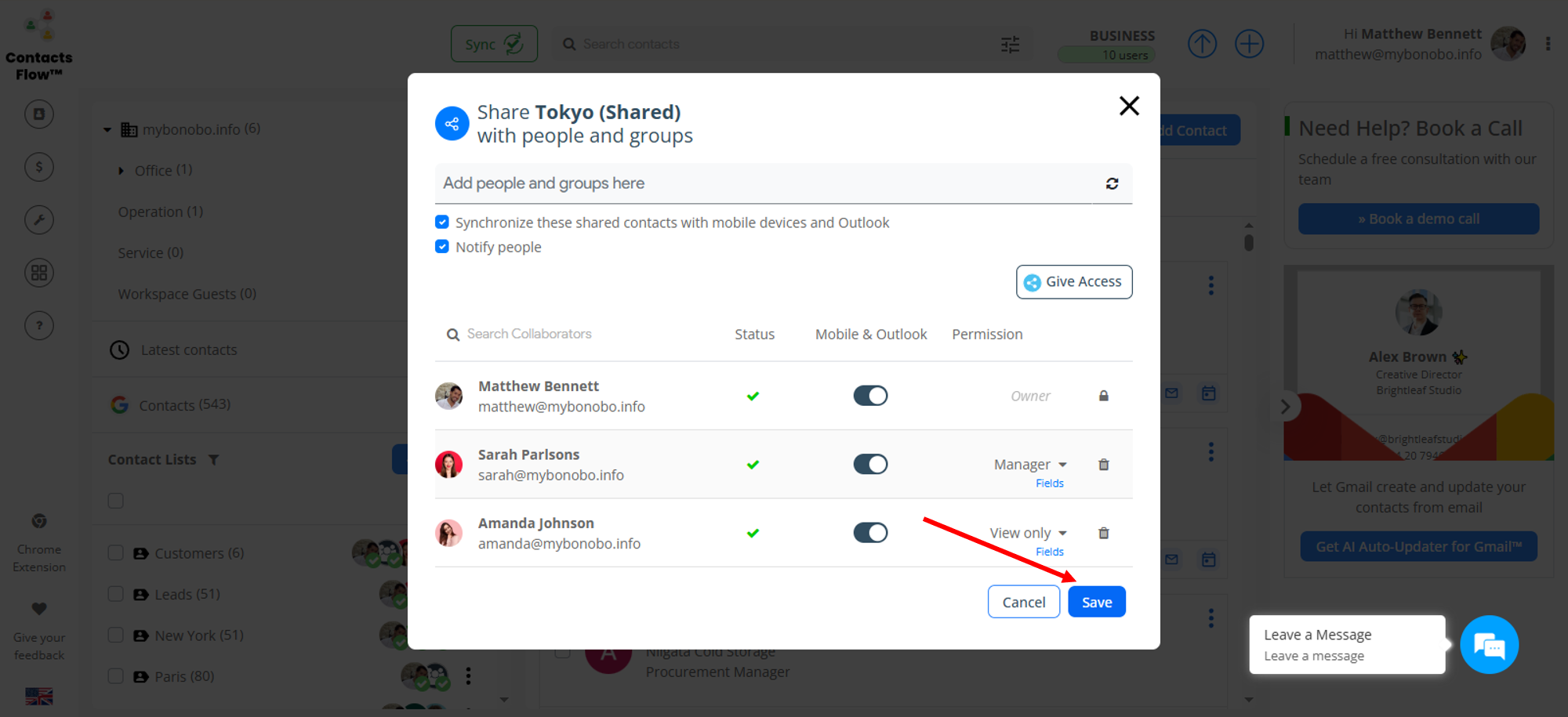
- Confirm that the collaborator is now set as a Manager.
A green notification will appear to confirm the changes.
You can also change users access permissions of a label from the following Apps:
Your Mobile Device
Stay up to date and on the ball by sharing Google contacts directly from your iPhone or Android mobile devices, at any place or moment in time!
Download the Shared Contact for Gmail Mobile App > Click the “share” icon on the desired label > add collaborator if they are not already present in the label > ‘label successfully shared’ > re-enter sharing icon on the same label > click on the collaborator’s icon on the bottom left of the screen or the contact list icon on the top right-hand corner in order to view collaborators > press on the current access permission on the collaborator you would like to change > choose “Can reshare”.
Have a look at the How to Share Google Contacts with your Mobile article for more insight.

Google Contacts
If you want to share Google Contacts directly from the Google Contacts interface, use the ContactsFlow™ (formerly Shared Contacts for Gmail™) Chrome extension. For full instructions, refer to the step-by-step guide on How to Utilize ContactsFlow™ Chrome Extension
After installing the Chrome extension, open Google Contacts, then
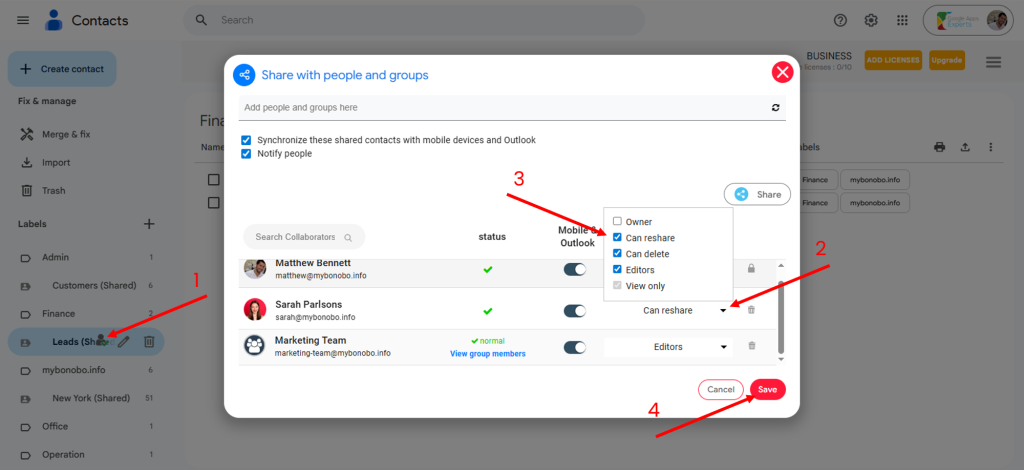
- Hover over the desired label and click the Share icon
- Add collaborators (if not already added), then click the drop-down arrow next to View Only
- Select Can Reshare
- Click Save
Gmail
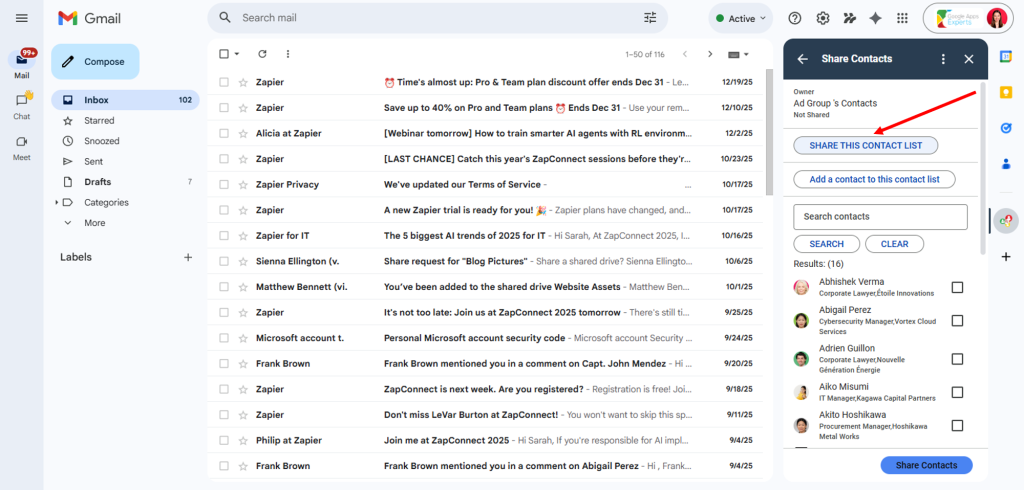
Thanks to the Shared Contacts Gmail Add-On built in directly from the ‘+’ icon on the right-hand side of your Gmail interface, Gmail users have the luxury of sharing, adding, and managing their contact labels on their Gmail dashboard.
Simply open the address book icon seen on the Add-in interface > select the label you would like to edit a collaborator’s access permissions on > click ‘share this contact list’ > a separate page will load > under permission, click the pull-down arrow and select “Can Reshare”.
Check out How to Share a Contact Label Directly From Gmail for some extra tips!
Troubleshooting
I modified a contact detail, but the changes are being reverted by the app.
This is because you do not have the correct access permissions to make and save those edits. You must contact the label owner and ask them to upgrade your permissions in order for your changes to stick.
You are delegating sharing capabilities like a professional already thanks to ContactsFlow™ (formerly Shared Contacts for Gmail™)!


